


3D animation software is a super fun and powerful tool that allows us to create genuinely interesting art. But sometimes it works in ways that you wouldn’t expect. Now there’s a long list (a very long list) of areas where this applies, but I want to focus in on something small but super common in animation.
Let’s say you wanted to animate an arm waving. Simple enough! Just create some keyframes with the arm in a few different key poses, add some in-between poses to smooth things out, and BAM! You’ve got yourself a wave animation. But what if, instead of waving, you wanted to animate someone crossing their arms? That’s where things become sliiightly more complicated. An object that’s moving on its own is one thing (literally), but two or more objects interacting with one another is like opening a can of worms (also tricky to animate by the way). In most 3D software, unless specifically designed to do so, there’s nothing stopping those two arms from just passing through each other. They’re just meshes.

So when animating something like this, you need to create poses and motion that can fake this interaction. But don’t worry, you’re not alone! That’s where constraints enter the picture. Constraints serve many purposes, but at their core, they allow you control an object’s position, rotation, or scale by connecting it to another object. There’s all types of constrains that serve specific purposes (parent, point, aim, orient). But here we’ll focus on parent constraints, which use an object’s translation, rotation, and scale. First you select your leader, then you select their follower. The follower object (the child) will mirror the movement of the leader object (the parent). Tech artists make use of parent constraints all the time to create character rigs. And in situations like this, animators do too.
Because most body parts in a character rig have a control, you can use those controls to your advantage when having the body interact with other parts of itself (or a completely separate object, but more on that later). With an animation of arms crossing, one of the main points of contact is the hand resting on the upper arm. So first I’ll figure out what body part should be leading the action and what body part should be following. Since the hand is resting on the arm, the arm is leading; And the hand is following its movement. Then I’ll figure out where the point of contact is on the arm. I’ll add a locator (an object that marks a point in space) in that spot and connect it to the closest control on the character rig. This locator is now the parent object.

After selecting the parent object, I’ll then select the child object. So in this instance, it’s the hand control. With Gabriel Salas’ Amy rig, this is a box control located near the wrist.
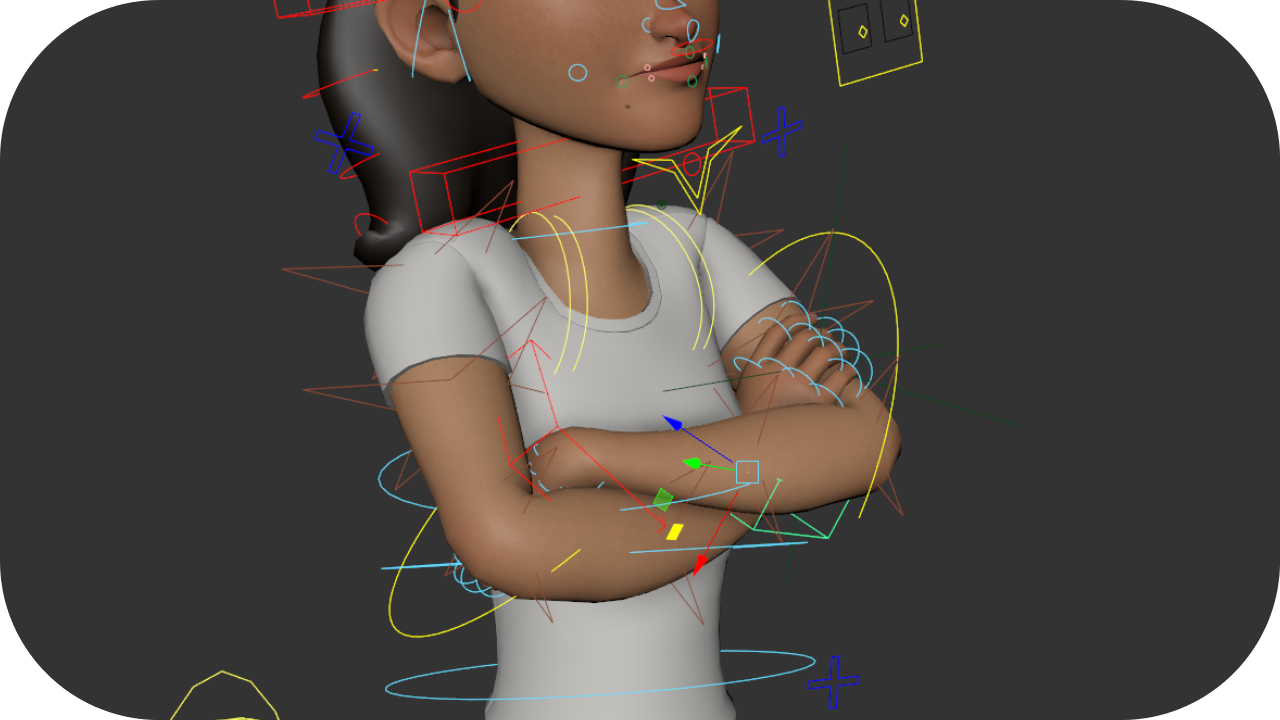
Then I’ll select the parent constraint option, and voila! It’s connected! After creating this constraint, I can then choose when it is and isn’t active. I’ll keep it turned off up until the hand is just about to make contact with the upper arm. Then I’ll activate the constraint and have the hand follow the arm’s movement from then on. It’s that simple! Here’s the final result:
I made this animation several years ago as a way to practice constraints for the first time. There’s two points of contact for each arm. One on the hip, and the other on the upper and lower arms. I think it worked out all right! Creating a simple animation like this was a great way to put these ideas into practice. But I’m sure you can imagine how complicated things can get when you add more points of contact. Or even other objects! I’ve made many more animations since this one that iterate on that idea. So many locators! So many constraints! But I’ll post more about those in the coming weeks. Anyway, thanks for reading!
Amy rig by Gabriel Salas
My Links: ArtStation / Instagram / Vimeo / YouTube


 Nick Kinteris
Leave a reply to Acting with a Prop! – Nick Kinteris Cancel reply